


Skip to content
INDXR.AI
five brass measuring cups lined up casting long shadows
Formats

Transcript Export Formats — Every Way to Get a Video's Text Out

IE
INDXR.AI Editorial
Published April 16, 2026 · Updated August 7, 2026

Once a transcript exists — whether from YouTube captions or AI transcription — it can be exported in seven file formats, with nine export options total. Every format comes from the same extraction: pick a video once, then download it as readable text, structured data, subtitles, or pipeline-ready chunks. This page covers each format — what the output actually looks like, and when it's the right choice.

All standard exports (TXT, Markdown, SRT, VTT, CSV, JSON) are included with every extraction. RAG JSON is the only exception and is available separately — see the pricing page for credit costs.

FormatWhat it's for
TXT plainRead through a video like a document, or use as a starting point for your own writing
TXT with timestampsFind exactly when something was said — useful for referencing or quoting
Markdown plainA text file with the video's metadata in the header — open in any notes app
Markdown with timestampsSame as regular Markdown, but with every line time-coded
SRTAdd subtitles to a video — works in Premiere Pro, DaVinci Resolve, CapCut
VTTSubtitles for websites and online courses — Canvas, Moodle, Articulate
CSVEvery segment as a spreadsheet row — for analysis or bulk processing
JSONStructured data with timestamps and video metadata — for developers
JSON RAGChunked and formatted for AI pipelines and vector databases

Plain text (TXT)

Most tools that extract YouTube captions give you exactly what YouTube gives you: hundreds of two-second fragments, each on its own line, strung together without structure. INDXR.AI takes that same data and groups it into readable paragraphs — the way you'd actually want to read it.

Raw caption output

your excellencies delegates ladies
and gentlemen as you spend the next
two weeks debating negotiating
persuading and compromising
as you surely must its easy
to forget that ultimately the
emergency climate comes down
to a single number the concentration
of carbon in our atmosphere
the measure that greatly determines
global temperature and the changes
in that one number is the clearest
way to chart our own story

INDXR.AI plain TXT output

your excellencies delegates ladies and gentlemen as you spend
the next two weeks debating negotiating persuading and
compromising as you surely must its easy to forget that
ultimately the emergency climate comes down to a single number
the concentration of carbon in our atmosphere the measure that
greatly determines global temperature

that number bounced wildly between 180 and 300 and so too did
global temperatures it was a brutal and unpredictable world
at times our ancestors existed only in tiny numbers but just
over 10 000 years ago that number suddenly stabilized

Same source video. Left: raw fragments as delivered by YouTube. Right: INDXR.AI groups them into paragraphs based on natural speech pauses.

Plain text is the simplest output: readable paragraphs, no timestamps, no line numbers. Good for reading through a video, taking personal notes, or using as a starting point for writing. There is also a plain text file with timestamps, where every line is time-coded — useful when the exact moment something was said needs to be referenced or quoted.

Markdown transcripts

Getting a YouTube transcript into Obsidian or Notion sounds simple until you try it. The Obsidian Web Clipper's transcript selector broke twice in early 2026 when YouTube updated its UI — the community published fixes, and then it broke again. The YTranscript plugin is more stable but outputs raw text with no frontmatter and rejects short youtu.be links. Most other solutions are browser extensions that stop working the moment YouTube redesigns a panel.

INDXR.AI exports YouTube transcripts as Markdown files from a server-side pipeline that doesn't depend on your browser, YouTube's UI, or any extension. Here's exactly what the export contains, what it looks like in your vault, and when it's the right choice.

What you actually get

Every Markdown export contains two things: a YAML frontmatter block at the top, and the transcript body below it.

Here's a real export from a YouTube video with auto-captions:

---
title: "Controlling Your Dopamine For Motivation, Focus & Satisfaction"
url: "https://www.youtube.com/watch?v=QmOF0crdyRU"
channel: "Huberman Lab"
published: "2021-07-05"
duration: 8191
language: "en"
transcript_source: "YouTube captions"
created: "2026-04-24"
type: youtube
tags: [youtube, transcript]
---

# Controlling Your Dopamine For Motivation, Focus & Satisfaction

Welcome to the Huberman Lab Podcast, where we discuss science
and science-based tools for everyday life...

And here's a real export using AI Transcription instead of YouTube captions:

---
title: "Controlling Your Dopamine For Motivation, Focus & Satisfaction"
url: "https://www.youtube.com/watch?v=QmOF0crdyRU"
duration: 8191
transcript_source: "AI Transcription (AssemblyAI)"
created: "2026-04-24"
type: youtube
tags: [youtube, transcript]
---

Notice the difference: channel, published, and language are only available when extracting via YouTube captions — those fields come from YouTube's video metadata. When using AI Transcription on a video file or audio upload, that metadata isn't available, so those fields are omitted rather than set to null. What you see is what you get.

The transcript_source field tells you how the transcript was produced. duration is stored as a number in seconds — directly usable in Dataview calculations. created is the date you ran the extraction, not the video's publish date.

Two export variants

Markdown — Plain outputs the transcript as continuous paragraphs, grouped by natural pauses in speech (gaps longer than 5 seconds trigger a new paragraph). No timestamps, no headers — clean prose for pasting into blog editors, feeding to AI tools, or creating summaries.

Markdown — With Timestamps adds a clickable ## [HH:MM:SS] header at the start of each paragraph. Here's what that looks like:

## [00:00:00](https://youtu.be/QmOF0crdyRU?t=0)
Welcome to the Huberman Lab Podcast, where we discuss science
and science-based tools for everyday life...

## [00:04:23](https://youtu.be/QmOF0crdyRU?t=263)
Most people have heard of dopamine, and we hear all the time
now about dopamine hits, but actually there's no such thing...

Each timestamp is a real link. In Obsidian, clicking [00:04:23](https://youtu.be/...) opens that exact moment in the video in your browser. This is not a feature any Obsidian plugin currently offers — it requires knowing the timestamp and constructing the ?t= URL at export time, which INDXR.AI does automatically.

The Obsidian workflow

Step 1 — Extract. Paste the YouTube URL into INDXR.AI. For videos with auto-captions, extraction is free and takes a few seconds. For videos without captions, enable AI Transcription (1 credit per minute) before extracting.

Step 2 — Export. Click Export → Markdown. Choose "With Timestamps" for notes you'll review and navigate, or "Plain" for content you'll summarize or repurpose. The .md file downloads immediately.

Step 3 — Drop into your vault. Drag the file into a Clippings/Videos/ folder in your vault. Obsidian indexes the frontmatter automatically — no setup required.

Step 4 — Query with Dataview. All frontmatter fields are immediately available. Some useful queries:

List all video notes, most recent first:

TABLE title, channel, round(duration / 60) AS "Minutes", transcript_source
FROM "Clippings/Videos"
WHERE type = "youtube"
SORT created DESC

Find all videos from a specific channel:

TABLE title, url, round(duration / 60) AS "Minutes"
FROM "Clippings/Videos"
WHERE channel = "Huberman Lab"
SORT created DESC

Videos over 45 minutes not yet processed:

TABLE title, channel, round(duration / 60) AS "Minutes"
FROM "Clippings/Videos"
WHERE type = "youtube" AND duration > 2700 AND !contains(tags, "processed")
SORT created DESC

Dataview reads all YAML frontmatter automatically — no configuration needed. Source: blacksmithgu.github.io/obsidian-dataview. For the full end-to-end Obsidian setup, see YouTube Transcript to Obsidian.

The Notion workflow

Notion doesn't automatically map YAML frontmatter to database properties. There are three ways to work with the export.

Import as a page. Settings → Import → Text & Markdown → upload the .md file. Notion creates a page with the transcript body formatted correctly. The YAML block appears as a code block at the top, which you can delete and manually fill in the database properties.

Copy-paste. For one-off videos, open the file in any text editor, select all, paste directly into a Notion page. Formatting renders cleanly.

Notion API. For automated pipelines, use Notion's API with the markdown parameter. A POST /v1/pages request can include both Markdown content and page properties in one call.

For a video database in Notion, the properties that map directly to INDXR.AI's export fields are: Title, URL, Channel, Published Date, Duration, and Tags.

For blog posts and newsletters

The plain Markdown export is the cleanest starting point for content repurposing. Paragraphs are grouped by natural speech pauses, HTML entities are decoded, and there's no timestamp clutter.

A straightforward workflow: extract transcript → export as plain Markdown → paste into Claude or ChatGPT with a prompt like "Rewrite this transcript as a blog post, keeping the main arguments and removing filler." You get a rough draft in seconds.

Ghost, Substack, and WordPress all accept Markdown input natively. Ghost uses Markdown as its primary editor format. Substack renders pasted Markdown with formatting intact.

One honest note: auto-caption transcripts don't have punctuation or capitalization. The paragraphs are readable but the text isn't polished. If you're repurposing content for publication, AI Transcription produces text with proper sentence structure that's significantly easier to edit. For a 30-minute podcast, the cost is 30 credits — about €0.75 at Plus pricing.

When Markdown is and isn't the right format

Use caseRecommended format
Obsidian vault with DataviewMarkdown with timestamps
Notion video databaseMarkdown (plain or timestamps)
Blog/newsletter repurposingMarkdown plain
AI summarization / ChatGPT inputMarkdown plain or TXT
Video editing / subtitle syncSRT or VTT
Data analysis / researchCSV
RAG pipeline / vector databaseRAG JSON
Developer integrationJSON

CSV export

A plain text transcript is readable. A CSV transcript is analyzable. If you're doing computational text analysis, word frequency counts, timestamp-based research annotation, or corpus analysis across multiple videos, the CSV export gives you the structured data you need without manual reformatting.

INDXR.AI exports YouTube transcripts as properly-structured CSV files with segment index, start time, end time, text, and word count per segment.

What the CSV contains

Each row in the CSV represents one transcript segment — a continuous unit of speech as detected by YouTube's captioning system or AssemblyAI's speech recognition.

ColumnTypeDescription
segment_indexIntegerSequential position of this segment (0-indexed)
start_timeFloatStart time in seconds (e.g., 0.0, 14.3, 247.8)
end_timeFloatEnd time in seconds (start + duration)
durationFloatLength of this segment in seconds
textStringTranscript text for this segment
word_countIntegerNumber of words in this segment

Encoding: UTF-8 with BOM (Byte Order Mark). This matters for Excel compatibility — without BOM, Excel frequently misinterprets UTF-8 encoded files and displays garbled text for non-Latin characters (Arabic, Chinese, Japanese, Korean, and others). Google Sheets handles UTF-8 with or without BOM correctly.

Opening in Excel, Google Sheets, Python, and R

Excel: Double-clicking the CSV file opens it correctly in most Excel versions because of the UTF-8 BOM. If the formatting looks wrong, use Data → From Text/CSV and specify UTF-8 encoding manually.

Google Sheets: File → Import → Upload. Sheets detects the encoding automatically and imports cleanly.

Python/pandas:

import pandas as pd

df = pd.read_csv("transcript.csv", encoding="utf-8-sig")  # utf-8-sig handles BOM
print(df.head())
print(f"Total segments: {len(df)}")
print(f"Total words: {df['word_count'].sum()}")
print(f"Duration: {df['end_time'].max():.1f} seconds")

R:

library(readr)
df <- read_csv("transcript.csv", locale = locale(encoding = "UTF-8"))

Common research use cases

Computational text analysis. Load the CSV into Voyant Tools, DARIAH's Topic Explorer, or a Python NLP pipeline. The structured format — one segment per row with timestamps — makes it straightforward to apply word frequency analysis, keyword-in-context, topic modeling, or sentiment analysis with temporal context.

Corpus analysis across multiple videos. Extract a playlist and download each video as a separate CSV. Combine them in Python or R to compare vocabulary, speaking pace (words per minute derived from word_count / duration), or topic distribution across a speaker's output over time.

Timestamped annotation. The start_time and end_time columns let you link analysis results back to specific moments in the video. A keyword that appears at segment index 47 starting at 284.2 seconds maps to a specific YouTube timestamp — useful for academic citation or user-facing applications that want to surface the relevant video moment.

Subtitle timing analysis. For researchers studying accessibility or subtitle quality, the segment timing data reveals patterns in how YouTube's auto-captioning system breaks speech — average segment lengths, variance, gaps between segments.

YouTube captions vs. AI Transcription for CSV

The same quality distinction that applies to other export formats applies here. Auto-caption CSV files will have unpunctuated lowercase text and segments of 2–5 seconds. AI transcription CSV files have properly punctuated text and more natural segment boundaries.

For text analysis tasks that don't depend on punctuation (word frequency, keyword search, topic modeling), auto-caption CSV is often sufficient and costs nothing. For tasks that rely on sentence structure — readability scoring, syntactic analysis, named entity recognition — AI transcription produces meaningfully better input data.

SRT and VTT subtitles

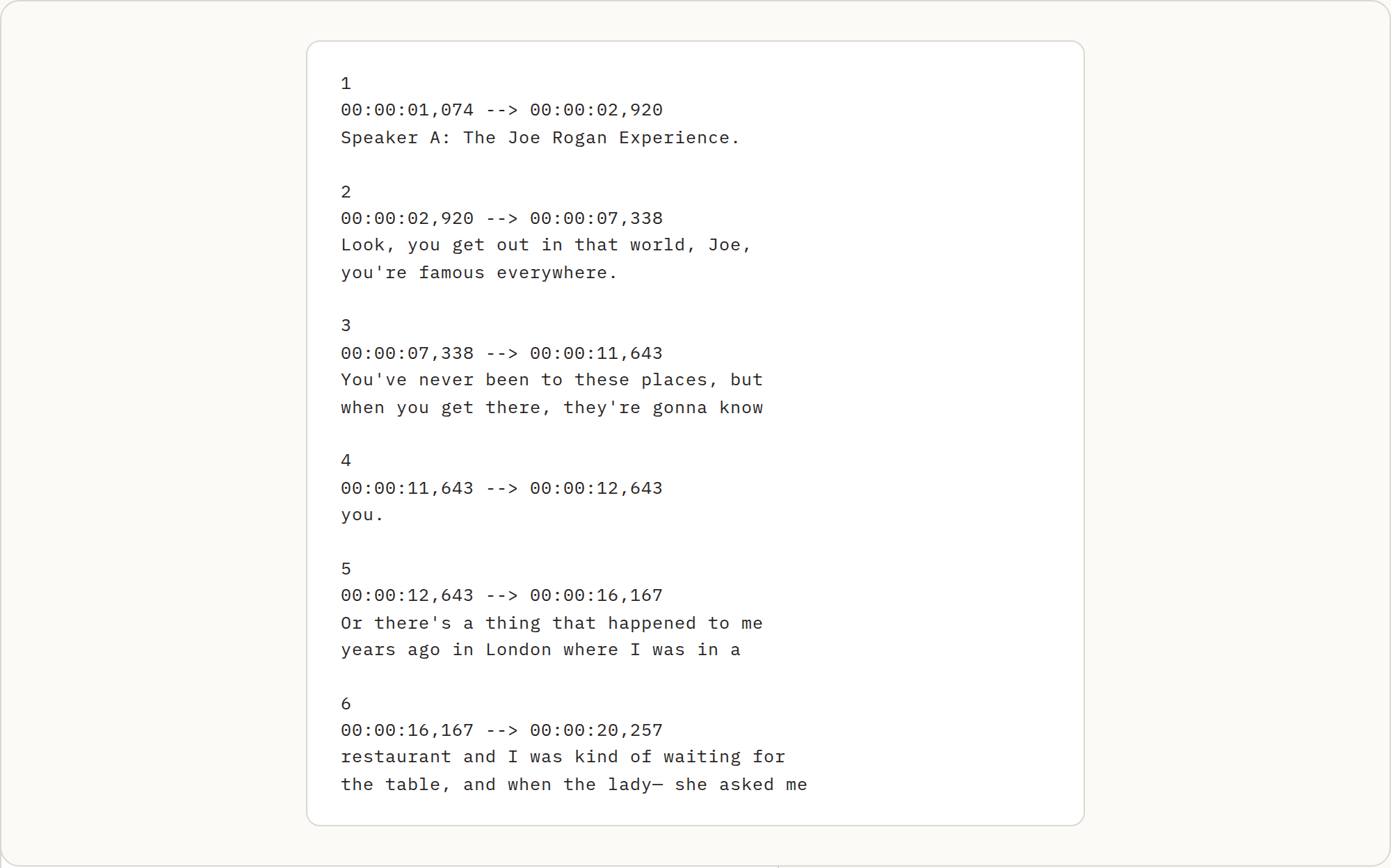
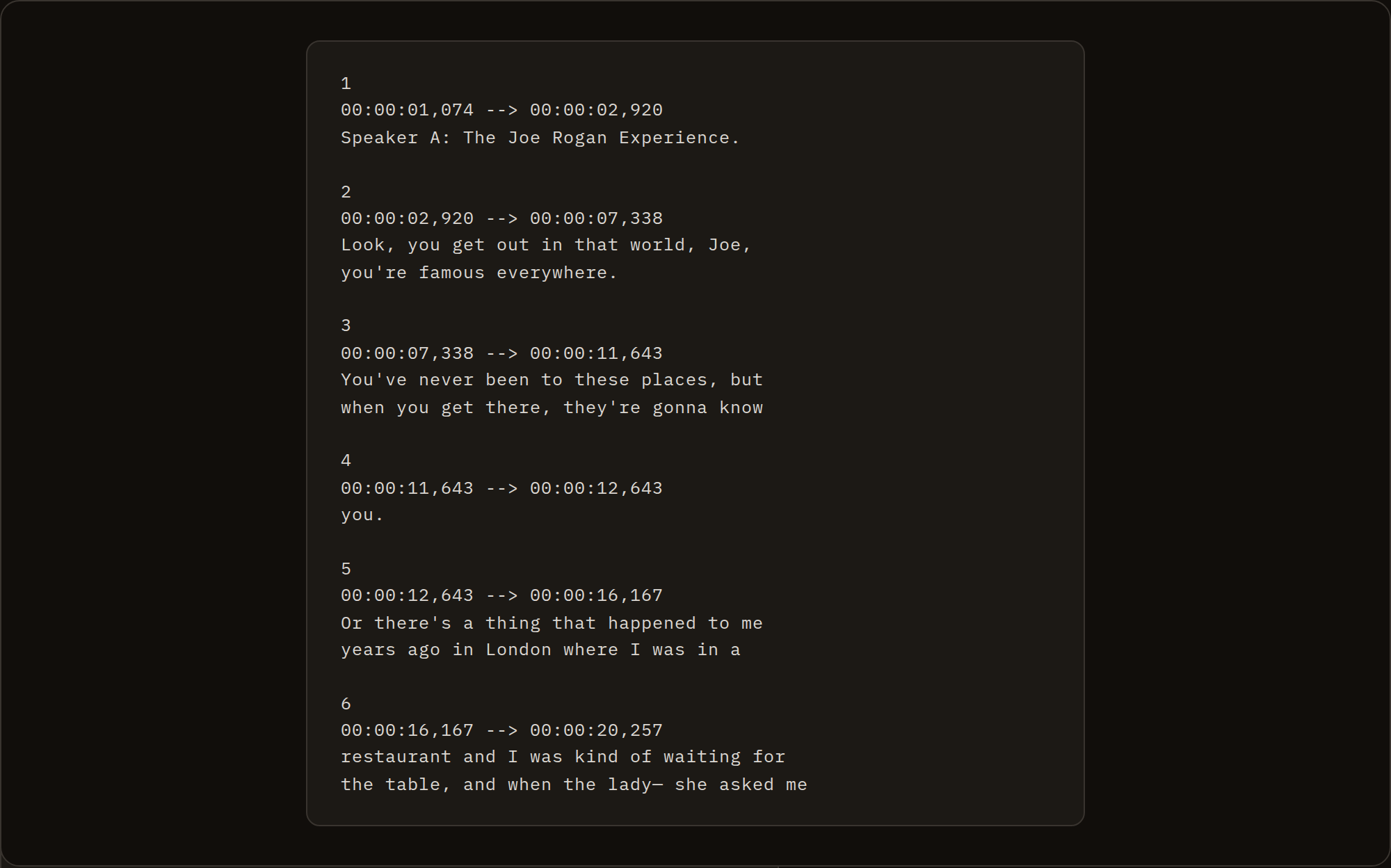
Downloading YouTube subtitles sounds simple. But open the SRT file from any basic subtitle downloader in Premiere Pro or DaVinci Resolve and you immediately see the problem: hundreds of two-second blocks, text flickering on and off before anyone can read it. YouTube's auto-caption system creates subtitle entries every 2–4 seconds, optimized for caption display during live playback — not for editors importing subtitle tracks.

INDXR.AI resegments the output before you download. The result follows broadcast subtitle standards: 3–7 seconds per block, maximum 42 characters per line, no mid-sentence cuts. Import it into your editor and it's clean enough to use without manual cleanup.

The problem with raw YouTube subtitle files

YouTube generates captions at the granularity of its speech recognition — short bursts of 2–4 seconds, usually 5–15 words each. This produces SRT files like:

1
00:00:02,000 --> 00:00:04,200
so one of the most important things

2
00:00:04,200 --> 00:00:06,100
to understand about this topic

3
00:00:06,100 --> 00:00:08,400
is that it changes depending on

Three subtitle blocks for one sentence. In a video player, the rapid switching is visually jarring. In a video editor, it creates a cluttered timeline and requires manual merging before the file is usable.

Professional subtitle standards (BBC Subtitle Guidelines, Netflix Timed Text Style Guide, EBU Tech 3264) call for blocks of 3–7 seconds, a maximum of two lines, and 42 characters per line. These standards exist because human readers need time to read and comprehend text before it disappears.

What INDXR.AI exports

After resegmentation, the same transcript looks like:

1
00:00:02,000 --> 00:00:08,400
So one of the most important things
to understand about this topic

One block. Complete sentence. Readable. Ready to import.

The resegmentation algorithm respects sentence boundaries — it doesn't merge segments across full stops or question marks. A sentence that ends at 5.2 seconds won't be forced into the previous block just to hit a duration target.

The resegmentation strategy depends on the transcript source. For AI Transcription (AssemblyAI), segments are merged until a sentence boundary is detected — a block closes on a period, question mark, or exclamation point, producing semantically complete subtitle units of 3–7 seconds. For auto-captions, which have no punctuation, a time-based merge is used instead: segments accumulate until the block reaches 3 seconds. Both approaches are a significant improvement over raw 2-second YouTube segments, but AI Transcription produces cleaner sentence-aligned blocks.

VTT output follows the same resegmentation and adds a header comment with the video title and language — useful for LMS platforms (Canvas, Moodle, Articulate 360) that use the header to associate subtitle files with source content.

UTF-8 BOM encoding is included by default for both SRT and VTT. This matters for editors and systems that may misinterpret UTF-8 text without the BOM — particularly for non-Latin script content.

When auto-captions don't exist

Plenty of YouTube videos have no auto-generated captions — non-English content YouTube hasn't processed, videos from smaller creators, older uploads, content with poor audio quality (YouTube Help). Basic subtitle downloaders return empty files or errors for these videos.

INDXR.AI detects this upfront and offers AI Transcription as a fallback. Enable the toggle, confirm the credit cost (1 credit per minute), and the audio is transcribed by AssemblyAI Universal-3.5 Pro. The resulting SRT/VTT is higher quality than auto-caption output — proper punctuation, accurate word boundaries, and clean segment timing.

For audio files you've already downloaded, the Upload tab accepts MP3, MP4, MPEG, MPGA, M4A, WAV, WEBM, OGG, FLAC, MOV, FLV, AVI, and MKV files up to 500MB and produces the same resegmented SRT/VTT output.

Compatibility with video editors

All major non-linear editors import SRT directly:

  • DaVinci Resolve: File → Import → Subtitles. Supports SRT for timeline caption tracks.
  • Premiere Pro: Captions workspace → Import captions from file. SRT imports as a caption track.
  • Final Cut Pro: Import → Captions. Supports SRT with CEA-608 compatibility.
  • CapCut: Captions → Import. SRT and VTT both accepted.
  • Kdenlive: Project → Add Clip → subtitle file.

VTT is the correct format for HTML5 <video> elements and web-based players that don't accept SRT natively.

LMS platforms that require VTT: Canvas, Moodle, Articulate 360, and most SCORM-compliant platforms accept VTT for accessibility compliance. INDXR.AI exports both formats from the same extraction.

JSON export

If you've worked with YouTube transcript data programmatically, you know the frustration. The raw output from youtube-transcript-api — the most-used library for this — looks like this:

[
  {"text": "everybody needs to learn to code", "start": 1.91, "duration": 2.1},
  {"text": "coding is the new literacy", "start": 4.01, "duration": 1.8}
]

No video title. No channel. No language. No end timestamp. Just fragments. You spend the next hour writing boilerplate to reconstruct what you actually need.

INDXR.AI exports transcripts as structured JSON with the metadata already in place. Here's exactly what you get and what it costs — no features described that aren't actually in the output.

Standard JSON — free for captioned videos

For any YouTube video with auto-generated captions, the standard JSON export is free.

Here's the actual output, taken from a real export of Fireship's How to Learn to Code (6.75 min):

{
  "metadata": {
    "video_id": "NtfbWkxJTHw",
    "title": "How to Learn to Code - 8 Hard Truths",
    "channel": "Fireship",
    "language": "en",
    "published_at": "2022-02-09",
    "duration_seconds": 405,
    "extraction_method": "youtube_captions",
    "extracted_at": "2026-04-23T18:38:07.820Z"
  },
  "segments": [
    {
      "text": "everybody needs to learn to code coding is the new literacy",
      "start_time": 1.91,
      "end_time": 4.01
    },
    {
      "text": "if you can't code you'll soon become obsolete",
      "start_time": 4.01,
      "end_time": 6.32
    }
  ]
}

Every segment has start_time and end_time — calculated from the raw caption timing. The metadata wrapper includes the video title, channel, language, and publish date, extracted automatically from YouTube's data.

The honest limitation with auto-captions: The text arrives as a stream of lowercase words with no punctuation. Notice "everybody needs to learn to code coding is the new literacy" — no capitalization, no period. This is a YouTube limitation, not ours. For most data processing purposes it's workable. For anything that presents text to users or needs sentence boundaries for downstream NLP, it's a meaningful quality gap.

For non-English videos: INDXR anchors to the video's native caption track, so caption extraction returns the original language — not the English translation that tools relying on YouTube's translatable track tend to get. If a video has no captions at all, use AI Transcription, which reads the audio directly in the original language. See non-English transcripts for the full explanation.

Cost: Free. No credits, no account required for a single video.

AI Transcription + standard JSON — 1 credit per minute

When you enable AI Transcription, INDXR.AI downloads the video audio and runs it through AssemblyAI Universal-3.5 Pro. The output format is identical — same metadata wrapper, same segments array — but the text quality changes substantially.

Here's what changes in the segments:

{
  "segments": [
    {
      "text": "This is a 3. It's sloppily written and rendered at an extremely low resolution of 28x28 pixels, but your brain has no trouble recognizing it as a 3.",
      "start_time": 4.434,
      "end_time": 10.315
    }
  ]
}

Proper capitalization. Proper punctuation. Sentence boundaries. This is from 3Blue1Brown's neural networks video — the same content that auto-captions would give you as an unpunctuated lowercase stream.

The difference matters for three specific situations:

First, AI Transcription works for videos without captions at all. Roughly 20% of YouTube videos have no auto-generated captions. For these, it's the only option.

Second, AssemblyAI is more accurate than YouTube auto-captions for English and other supported languages — particularly with accents, fast speech, and technical vocabulary.

Third, if you're building a RAG pipeline, punctuated text with sentence boundaries enables sentence-level chunking. Without punctuation, chunkers cut through sentences arbitrarily.

Cost: 1 credit per minute, minimum 1 credit.

Video lengthCreditsCost at Plus pricing
10 min10€0.25
30 min30€0.75
1 hour60€1.50
2 hours120€3.00

What you'd add yourself

The output doesn't include everything some pipelines want. Specifically: channel and language are not available for audio uploads (only YouTube video extraction), since those fields come from YouTube's metadata. If you need formatted timestamps ("00:01:32") rather than float seconds, construct them from start_time. If you need a YouTube deep link and you already have the video ID, it's https://youtu.be/{video_id}?t={Math.floor(start_time)} — the same formula we use.

RAG-optimized JSON

Raw YouTube transcripts are not RAG-ready. YouTube returns transcripts as 2–5 second segments — fragments of roughly 8–20 tokens each. Embedding models work best with 200–400 tokens of coherent text (Vectara NAACL 2025, NVIDIA benchmark, Chroma Research, Microsoft Azure AI Search). Feed them 15-token fragments and your retrieval quality degrades immediately: queries can't match context that's been cut into arbitrary pieces, and there's no metadata to filter by video, channel, or timestamp.

Every developer building a YouTube-based RAG pipeline hits this problem and solves it manually: merge segments, pick a chunk size, handle overlap, attach metadata, format for the vector database. INDXR.AI's RAG JSON export does that in one click.

What the output actually looks like

Here's a real chunk from a 3Blue1Brown neural networks video (19 min, AssemblyAI transcription, 60s preset):

{
  "metadata": {
    "video_id": "aircAruvnKk",
    "title": "But what is a neural network? | Deep learning chapter 1",
    "duration_seconds": 1119,
    "extraction_method": "assemblyai",
    "extracted_at": "2026-04-23T18:55:35.850Z",
    "chunking_config": {
      "chunk_size_seconds": 60,
      "overlap_seconds": 9,
      "overlap_strategy": "sentence_boundary",
      "total_chunks": 18
    }
  },
  "chunks": [
    {
      "chunk_index": 0,
      "chunk_id": "aircAruvnKk_chunk_000",
      "text": "This is a 3. It's sloppily written and rendered at an extremely low resolution of 28x28 pixels, but your brain has no trouble recognizing it as a 3. And I want you to take a moment to appreciate how crazy it is that brains can do this so effortlessly...",
      "start_time": 4.434,
      "end_time": 67.98,
      "deep_link": "https://youtu.be/aircAruvnKk?t=4",
      "token_count_estimate": 251,
      "metadata": {
        "video_id": "aircAruvnKk",
        "title": "But what is a neural network? | Deep learning chapter 1",
        "chunk_index": 0,
        "total_chunks": 18,
        "start_time": 4.434,
        "end_time": 67.98,
        "language": null
      }
    }
  ]
}

A few things worth noting directly.

deep_link is pre-constructed per chunk. Click it and you land on the exact second the chunk starts in the video. When your LLM cites a source, it can link to the moment, not just the video page.

metadata is flat. Vector databases require scalar key-value pairs — no nested objects. The structure here loads directly into Pinecone, ChromaDB, Weaviate, and Qdrant without transformation.

token_count_estimate uses the cl100k_base approximation (~1.33 tokens per word). It lets you verify chunks fit your embedding model's context window without running a tokenizer yourself.

overlap_strategy tells you how the overlap was computed. For AssemblyAI transcripts with punctuation, we use sentence-boundary detection — the overlap ends on a complete sentence. For auto-caption transcripts without punctuation, we use segment-boundary overlap instead.

Chunk size options

Four presets, configurable in Settings → Developer Exports:

PresetDuration~TokensBest for
Quote30s~100Short-form content, granular retrieval
Balanced60s~200Default — works across most use cases
Precise90s~300Inside the research-backed sweet spot
Context120s~400Lectures, long-form analysis

The 60s default balances retrieval granularity with semantic completeness. For lecture content like the Karpathy GPT video (1h56m), 90s produced 89 chunks with ~400 tokens each — the range that performs best for analytical queries according to NVIDIA's 2024 benchmark.

Loading into LangChain

Each chunk maps directly to LangChain's Document schema:

import json
from langchain.schema import Document
from langchain_openai import OpenAIEmbeddings
from langchain_community.vectorstores import Chroma

with open("transcript_rag.json") as f:
    data = json.load(f)

documents = [
    Document(
        page_content=chunk["text"],
        metadata=chunk["metadata"]
    )
    for chunk in data["chunks"]
]

embeddings = OpenAIEmbeddings(model="text-embedding-3-small")
vectorstore = Chroma.from_documents(documents, embeddings)

results = vectorstore.similarity_search(
    "What is the core challenge with raw transcripts?",
    k=3
)

for doc in results:
    print(f"[{doc.metadata['start_time']}s] {doc.page_content[:200]}")

Loading into Pinecone

import json
from openai import OpenAI
from pinecone import Pinecone

with open("transcript_rag.json") as f:
    data = json.load(f)

client = OpenAI()
pc = Pinecone(api_key="YOUR_API_KEY")
index = pc.Index("youtube-transcripts")

vectors = []
for chunk in data["chunks"]:
    embedding = client.embeddings.create(
        input=chunk["text"],
        model="text-embedding-3-small"
    ).data[0].embedding

    vectors.append({
        "id": chunk["chunk_id"],
        "values": embedding,
        "metadata": chunk["metadata"]
    })

for i in range(0, len(vectors), 100):
    index.upsert(vectors=vectors[i:i+100])

YouTube captions vs. AI Transcription for RAG

The difference matters more for RAG than for any other use case.

Auto-captions lack punctuation. Text arrives as lowercase words without sentence boundaries. When the chunker tries to detect where sentences end for overlap computation, it can't — so it falls back to segment-boundary overlap instead. The chunks still work, but the overlap is less semantically clean.

Auto-captions are also less accurate than AssemblyAI, particularly for accents, domain vocabulary, and fast speech. Errors propagate into your embeddings.

For RAG pipelines where retrieval quality matters, use AI Transcription. The resulting chunks have proper sentence boundaries, accurate text, and sentence-level overlap. For a 19-minute video, AI Transcription costs 19 credits — roughly €0.48 at Plus pricing.

One specific case where auto-captions are fine: if your downstream pipeline does its own text cleaning and doesn't rely on sentence boundaries for chunking decisions.

RAG JSON pricing

RAG JSON export: 1 credit per 10 minutes of video, minimum 1.

Video lengthCredits
0–10 min1 credit
11–20 min2 credits
21–30 min3 credits
31–60 min6 credits
1h56min (Karpathy GPT)12 credits
2h49min (Joe Rogan Snowden)17 credits

Re-downloading a transcript you've already exported is free. Credits never expire.

For a deep dive into chunk size research and overlap strategy, see How to Chunk YouTube Transcripts for RAG.

Getting started

For playlists, the Playlist tab processes all selected videos in one job, and every format is available in bulk — select the transcripts in your library and download a ZIP with one file per video. For audio files from any source, the Upload tab accepts MP3, MP4, MPEG, MPGA, M4A, WAV, WEBM, OGG, FLAC, MOV, FLV, AVI, MKV up to 500MB and produces the same formats.

Everything you extract is saved to your library — a personal archive of all your transcripts, searchable and accessible from any device. Sign up for a free account to get started: 25 credits included, no payment or credit card required. For credit packages, see the pricing page; for a full overview of the extraction pipeline, see how INDXR.AI works.

Frequently Asked Questions

Is this actually free?
For videos with auto-generated captions: yes, completely. No account needed to extract and download as TXT. A free account unlocks all export formats, adds 25 credits for AI transcription testing, and gives access to your personal library — one place for all your transcripts and exports, saved and searchable.
What does the plain TXT output look like?
A text file with flowing paragraphs — no timestamps, no line numbers. Segments are grouped by natural speech pauses, typically 60 to 90 seconds per paragraph. The result reads like a document rather than a raw caption file.
What's the difference between plain and timestamps variants?
Plain Markdown is continuous paragraphs — no time references, no headers between sections. Best for reading, summarizing, and AI input. The timestamps variant adds a ## [HH:MM:SS](youtube-link) header at the start of each paragraph. Best for Obsidian notes where you want to navigate the transcript and click back to the video.
Is the frontmatter compatible with Obsidian Properties?
Yes. Obsidian's Properties panel reads standard YAML frontmatter. duration appears as a number property; created as a date; tags as a multi-select. All fields appear automatically when you open the note.
Why do Obsidian plugins keep breaking for YouTube transcripts?
Plugins that work by reading YouTube's page HTML break whenever YouTube changes its frontend. The Obsidian Web Clipper's transcript selector broke twice in early 2026 (Obsidian Forum thread 111550). INDXR.AI retrieves transcripts server-side via YouTube's internal API endpoints, which are not affected by frontend changes.
Does the CSV include the full video metadata?
Not as columns in the main data — only segment_index, start_time, end_time, duration, text, and word_count per segment. For video-level metadata (channel, total duration, language, source URL), export as JSON instead — the JSON format includes a full video metadata wrapper.
Does it work for videos in non-Latin scripts?
Yes. The UTF-8 BOM encoding handles Arabic, Chinese, Japanese, Korean, Hebrew, and other non-Latin scripts correctly in CSV, SRT, and VTT. Excel opens these files without character encoding issues.
Why don't raw YouTube SRT files work well in video editors?
YouTube creates subtitle entries every 2–4 seconds for display synchronization during playback. Editors need longer segments — 3–7 seconds — for readable on-screen text. The difference is between a subtitle file designed for watching and one designed for editing. INDXR.AI resegments to the editing standard.
What's the maximum characters per line in INDXR.AI's SRT output?
42 characters per line, maximum two lines per block — the broadcast industry standard recommended by the BBC Subtitle Guidelines and Netflix Timed Text Style Guide. Lines that would exceed 42 characters are wrapped to a second line rather than truncated.
What's the difference between standard JSON and RAG JSON?
Standard JSON gives you 2–5 second segments — the raw caption timing. RAG JSON merges those into configurable chunks (30s–120s) with overlap, per-chunk deep links, token count estimates, and flat metadata. Standard JSON is a data format. RAG JSON is a pipeline-ready input.
Can I change the chunk size after export?
Yes. Set your preferred default in Settings → Developer Exports. You can re-export any saved transcript with a different preset — no re-transcription needed.
What embedding model should I use?
OpenAI text-embedding-3-small is a practical default for the 200–400 token range our chunks produce. Cohere embed-english-v3.0 and Voyage AI voyage-3 are strong alternatives.

Sources

See also